How to Use Two WhatsApp Accounts with GBWhatsApp

Ever wished you could keep your personal and work chats completely separate without carrying two phones? You're not alone. Managing multiple WhatsApp accounts used to be a hassle, but with GBWhatsApp, it's actually incredibly simple.
In this guide, I'll show you exactly how to set up and run two WhatsApp accounts on a single Android device. No rooting required, and it only takes about 5 minutes.
Why Use Two WhatsApp Accounts on One Phone?
Before we jump into the "how," let's talk about the "why." Using dual WhatsApp accounts on a single Android device is a game-changer for a few reasons:
- Work-Life Balance: Keep your boss's messages away from your family group chats. When you're off the clock, you can simply mute the work account.
- Privacy & Security: You can give out your secondary number to online sellers, delivery drivers, or new acquaintances without exposing your primary personal number.
- Advanced GBWhatsApp Features: You can use the official WhatsApp for basic stuff and GBWhatsApp for its advanced privacy features (like Ghost Mode, Anti-Delete messages, and custom themes) on your second number.
Step-by-Step GBWhatsApp Dual Account Setup Guide
Ready to get started? Here is the easiest way to run two WhatsApp accounts simultaneously without rooting your phone. We'll use the official WhatsApp for your first number and GBWhatsApp for your second number.
Step 1: Keep Your Official WhatsApp Installed
If you already have the official WhatsApp installed with your primary number, leave it exactly as it is. Don't uninstall it. This will serve as your "Account 1".
Step 2: Download the Latest GBWhatsApp APK
Next, you need to get the GBWhatsApp APK file. Since modified apps are not allowed on the Google Play Store, you'll need to download it from a trusted source.
- Use a source you trust and verify the file before installing it.
- Check the APK version, permissions, and security scan results on your Android device.
Step 3: Install the GBWhatsApp APK
Once downloaded, tap the file to install it. If your phone blocks the installation, go to your phone's Settings > Security and enable "Install from Unknown Sources" (or "Allow from this source" on newer Android versions).
Step 4: Register Your Second Phone Number
Now for the final step to activate your dual WhatsApp setup:
- Open the newly installed GBWhatsApp application.
- Tap "Agree and Continue" on the welcome screen.
- Enter your second phone number (make sure you have the SIM card active in your phone or another device to receive the SMS verification code).
- Verify the OTP code sent via SMS.
- Set up your profile name and profile picture.
That's it! You now have two fully functional WhatsApp icons on your home screen, each tied to a different phone number, allowing you to manage dual accounts seamlessly.
Common GBWhatsApp Installation Problems & Fixes
Sometimes setting up two WhatsApp accounts doesn't go perfectly. Here are a few hiccups you might run into and how to fix them quickly:
Fixing the "App Not Installed" Error
If you get this error while installing GBWhatsApp, it usually means you don't have enough storage space, or Google Play Protect is blocking the installation. Try clearing at least 2GB of space and temporarily disabling Play Protect in the Google Play Store settings.
Notifications Not Showing for the Second Account
If your second WhatsApp account isn't showing notifications, your Android phone's battery saver might be killing the app in the background. Go to your phone's Settings > Apps > GBWhatsApp > Battery, and set it to "Unrestricted" or "No restrictions".
Pro Tips for Managing Dual WhatsApp Accounts
To get the best experience out of your dual setup, keep these pro tips in mind:
- Use Different App Icons: GBWhatsApp allows you to change the app icon color from the settings. Change it to blue or red so you don't accidentally open your work app when you mean to open your personal app.
- Backup Separately: Remember that Google Drive backups work differently on modded apps. Use the local backup feature in GBWhatsApp (GB Settings > Backup and Restore) frequently to keep your second account's data safe.
- Don't Spam: Don't use your second GBWhatsApp account to send bulk promotional messages, or the number will get banned quickly by WhatsApp's automated systems.
Frequently Asked Questions
Can I use the same number for both apps?
No. WhatsApp only allows one active session per phone number on a mobile device. If you verify your primary number on GBWhatsApp, it will log you out of the official app. You must use two different phone numbers.
Do I need a dual-SIM phone?
Not necessarily. You just need to be able to receive the SMS verification code for the second number. The second SIM could be in an old phone, or it could be a virtual number (like Google Voice).
Is it safe to run both apps together?
Yes, they install in different package names (com.whatsapp vs com.gbwhatsapp), so they don't interfere with each other's files or data.
Conclusion
Running two WhatsApp accounts doesn't require buying a second phone or dealing with clunky "app cloner" software. By simply installing GBWhatsApp alongside your official app, you get a clean, native experience for both your numbers. Just remember to use a separate number and keep your app updated!
Recommended Reading
Is GB WhatsApp Safe to Use? Security and Privacy Risks
Is GB WhatsApp safe to use? Learn about its security, privacy, account ban risks, APK downloads, and what to consider before installing it.
Read More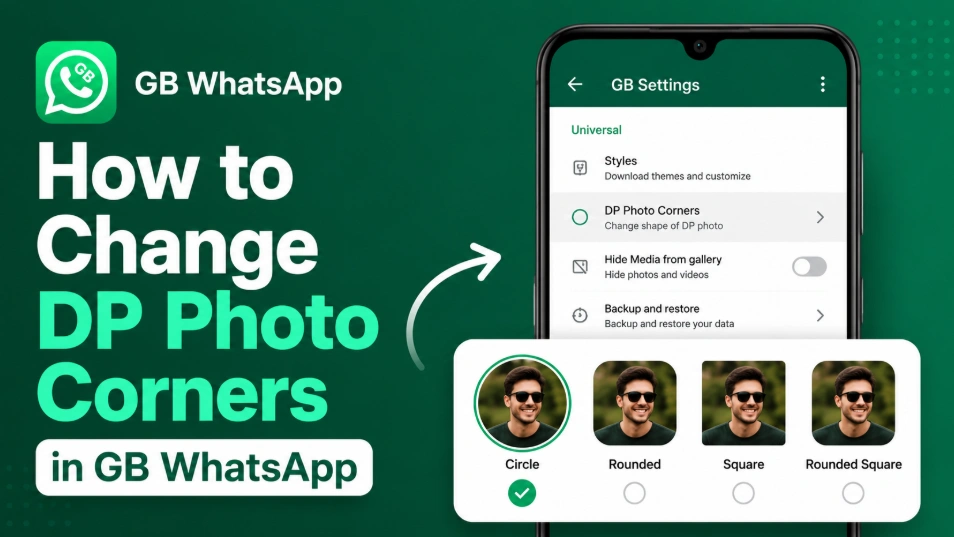
How to Change DP Photo Corners in GB WhatsApp (2026)
Learn how to change DP Photo Corners in GB WhatsApp by opening GB Settings > Universal > DP Photo Corners, selecting your preferred style, and saving the changes.
Read More
How to Recover Deleted Messages in GB WhatsApp (2026)
Recover deleted messages in GB WhatsApp by enabling the Anti-Delete Messages feature. View messages even after the sender deletes them.
Read More